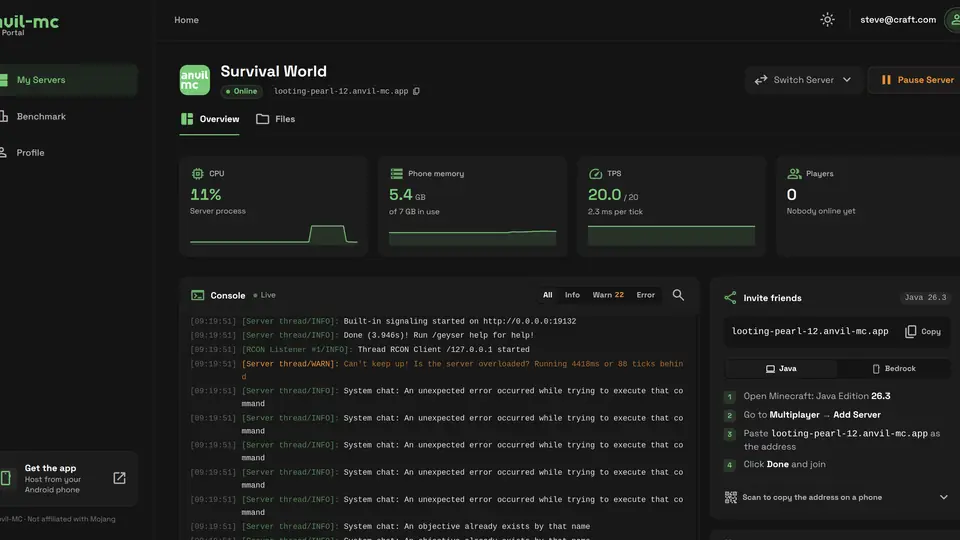
Your Minecraft server runs on your phone, but you do not have to manage it from a small screen. The Anvil-MC web dashboard opens your server in any browser on your computer: live CPU, memory and TPS graphs, a full console, player management and, new in 2.1.3, a file manager that uploads whole modpacks and worlds from your computer straight to your phone.
Quick start
Open the dashboard in three steps
- 1On your computer, go to dashboard.anvil-mc.com and sign in with the same account you use in the Anvil-MC app, with Google or with your email.
- 2Open My Servers and pick your server. If you have more than one, use Switch Server at the top right.
- 3Use Overview for live stats, the console and players, and Files to move files between your computer and your phone.
No port forwarding and nothing to install on your computer. It works in Chrome, Edge, Firefox, Opera and Safari.
Live stats: CPU, memory, TPS and players
The Overview tab shows four live cards, each with a graph of the last few minutes:
- CPU: how hard the server process is working.
- Phone memory: how much of your phone's RAM is in use.
- TPS: ticks per second. A healthy server runs at 20. Below that, mobs, redstone and crops slow down and players notice lag. The 5 and 15 minute averages show whether a dip was a moment or a trend. TPS now reads correctly on Fabric and NeoForge servers too.
- Players: who is online right now.
From the same page you can copy your server address, share it with friends, and pause or resume the server.
Console with search and command history
Typing commands on a real keyboard is the main reason to open the dashboard. The console streams your server's log live and sends any command you type, with or without the leading slash.
Search the log, filter it to warnings or errors, and press the up arrow to bring back earlier commands. Commands autocomplete for your server's Minecraft version.
Manage players
The Players panel has three lists: Online, Whitelist and Bans. Open the menu next to an online player to:
- Change their game mode.
- Make them an operator, or take operator away.
- Teleport them to another player or to coordinates.
- Kick or ban them, with an optional reason.
Turn the whitelist on or off, add or remove names, and unban players from the same panel. Every action shows whether the server confirmed it, so you know it worked.
Upload a modpack or world from your computer
Getting a modpack, a world or a big plugin folder from a PC onto a phone used to mean cables, zip files and a file manager app. The Files tab replaces all of that: drag the folder onto the page and it lands in your server.
Connect Files
Allow your computer once
- 1Make sure your computer and phone are on the same Wi-Fi.
- 2Open the Files tab on the dashboard. Your phone shows Allow this computer?
- 3Tap Allow. Tick Remember this computer to skip this step next time.
Once connected, you can:
- Upload files and whole folders: drag them onto the page, or onto a folder in the list to upload into it.
- Download files and folders: a folder or a multi-file selection downloads as one zip.
- Edit config files in the browser: open server.properties or a plugin config, change it and save with Ctrl+S.
- Move, copy, rename and delete files and folders.
- Unzip archives on the phone, and use a world folder or zip as your server's world. The current world is kept in a folder beside it, so you can switch back.
If a file or folder already exists, the dashboard asks what to do: replace it, keep both, skip it or, for folders, merge them. You can pick once for all of them or per file. That makes it easy to drop an updated mods folder over the old one.
Why the same Wi-Fi? Files go straight from your computer to your phone over your own network, never through the internet. That keeps big uploads fast and your files private.
Before downloading a world, stop the server. A running server keeps saving, so a copy taken while it runs can come out damaged. While your phone is backing up the server or installing add-ons, files are read-only until it is done. A session ends after 15 minutes without activity, or after 4 hours.
Trusted computers
When you tick Remember this computer, that computer opens your files without asking next time. In the app, go to Profile, then Trusted computers to see every remembered computer and when it was last used. Remove one and it has to ask again. Switch off Allow requests from the dashboard to refuse every request.
Share access with a friend
Under Shared Access, invite someone by email to help manage your server. They get the invitation on their own dashboard, and once they accept, your server shows up in their server menu next to their own. It suits a co-owner or a trusted moderator who should not need your phone.
See how your phone ranks
The Benchmark page shows your phone's HostScore and where it ranks against other hosts and phones like yours. The full ranking is on the public phone leaderboard.
Files is on every account. The live panels, stats, console and players, are part of Premium, together with a permanent server address and no ads. New accounts can try them first.
Files tab won't connect?
- "Your computer and phone must be on the same Wi-Fi". Connect both to the same network. A phone on mobile data or a guest network cannot be reached.
- "The request expired" or "Your phone did not answer". Open Anvil-MC on your phone, then try again and tap Allow. If notifications from Anvil-MC are off, the request only shows inside the app.
- "Requests from the dashboard are off". Turn them back on in the app under Profile, Trusted computers.
- "Update Anvil-MC". File transfer needs version 2.1.3 or newer on your phone.
Next step. With a modpack uploaded, see how to toggle, update and upgrade mods and plugins from the app. Questions about the dashboard are welcome on our Discord.